Shortcuts
Shortcuts
Hamaki supports macOS Shortcuts. You can query your schedule, retrieve visitor information, and create spots from any Shortcut, Focus automation, or Siri command.
Find all Hamaki actions by searching for "Hamaki" in Shortcuts.app.
Available actions
Appointments for Day
Returns all appointments for a given date. Each result includes the visitor name, email, time, and calendar.
Get Appointment Details
Takes a Hamaki event ID and returns the full details for that spot: visitor name, email, start date, and any comment the visitor left at booking.
Get Visitor Pulse
Returns the booking pattern for one or more visitors: how many times they have visited, when they last came in, and roughly how often they come back.
Create Spots for Calendar
Creates one or more available booking slots in a calendar for a given date and time range.
Next Appointment
Returns the next upcoming booked spot across all your calendars, with visitor name, time, and calendar.
Today's Summary
A quick overview of today: how many spots are booked, how many are still free, and who is coming in next.
Example: Daily note in Obsidian
This Shortcut builds a Markdown table of today's appointments and appends it to your Daily Note in Obsidian.
- Get appointments for today
- Set variable vault to your Obsidian vault name
- Text: a Markdown table header (
# Appointments for today, column headers) - Append that header to the Daily Note in Obsidian
- Repeat with each item in the appointments, formatting each as a table row with start time, visitor name, and email
- Append each row to the Daily Note
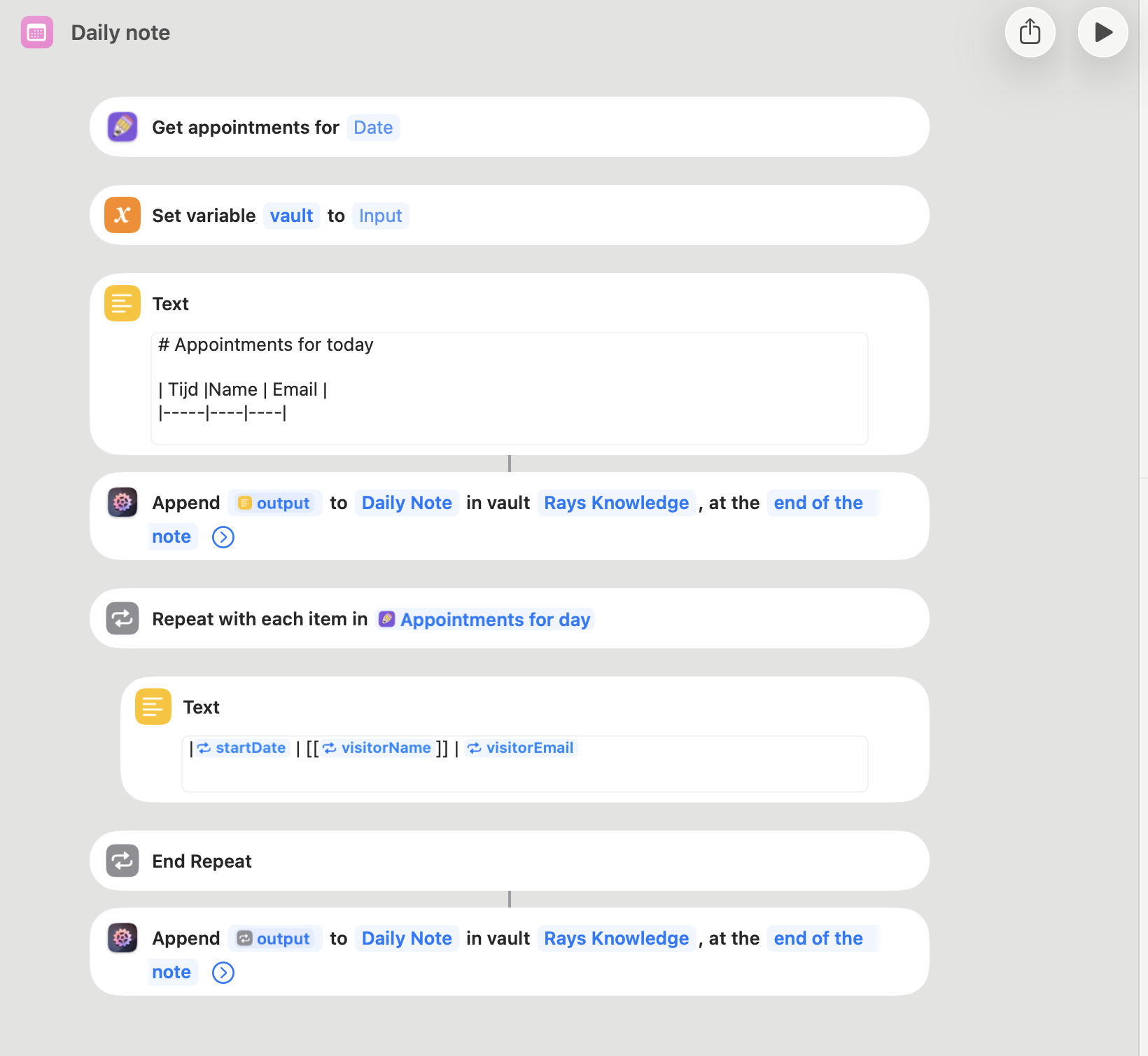
Run this Shortcut each morning and your Daily Note opens with a ready-made table of who is coming in.
Note taking with Shortcuts
If you use Apple Notes or any app without a direct URL scheme, you can connect it to Hamaki via a Shortcut.
In calendar settings, under Note Taking, select Shortcut or Apple Notes and enter the name of a Shortcut you have built. When you open a visitor's note from Hamaki, it calls your Shortcut with the appointment's event ID. Your Shortcut then calls Get Appointment Details to retrieve the visitor's name and opens or creates the right note.
You build the Shortcut once, and it works for every visitor in that calendar.
Siri
All Hamaki actions are available in Siri. For example:
- "What is my next appointment?"
- "Create a spot in my coaching calendar tomorrow at 2pm"
Siri will confirm before creating anything.